Your Workflow is Too Slow
Figma is an incredible tool out of the box. But if you are doing everything manually—renaming layers, filling text with Lorem Ipsum, or checking contrast ratios—you are working in the past.
In 2026, the plugin ecosystem is smarter than ever. We have moved beyond simple "Unsplash" plugins into full AI assistants. Here are the Top 10 Figma Plugins that will double your design speed this year.
Why you need it:
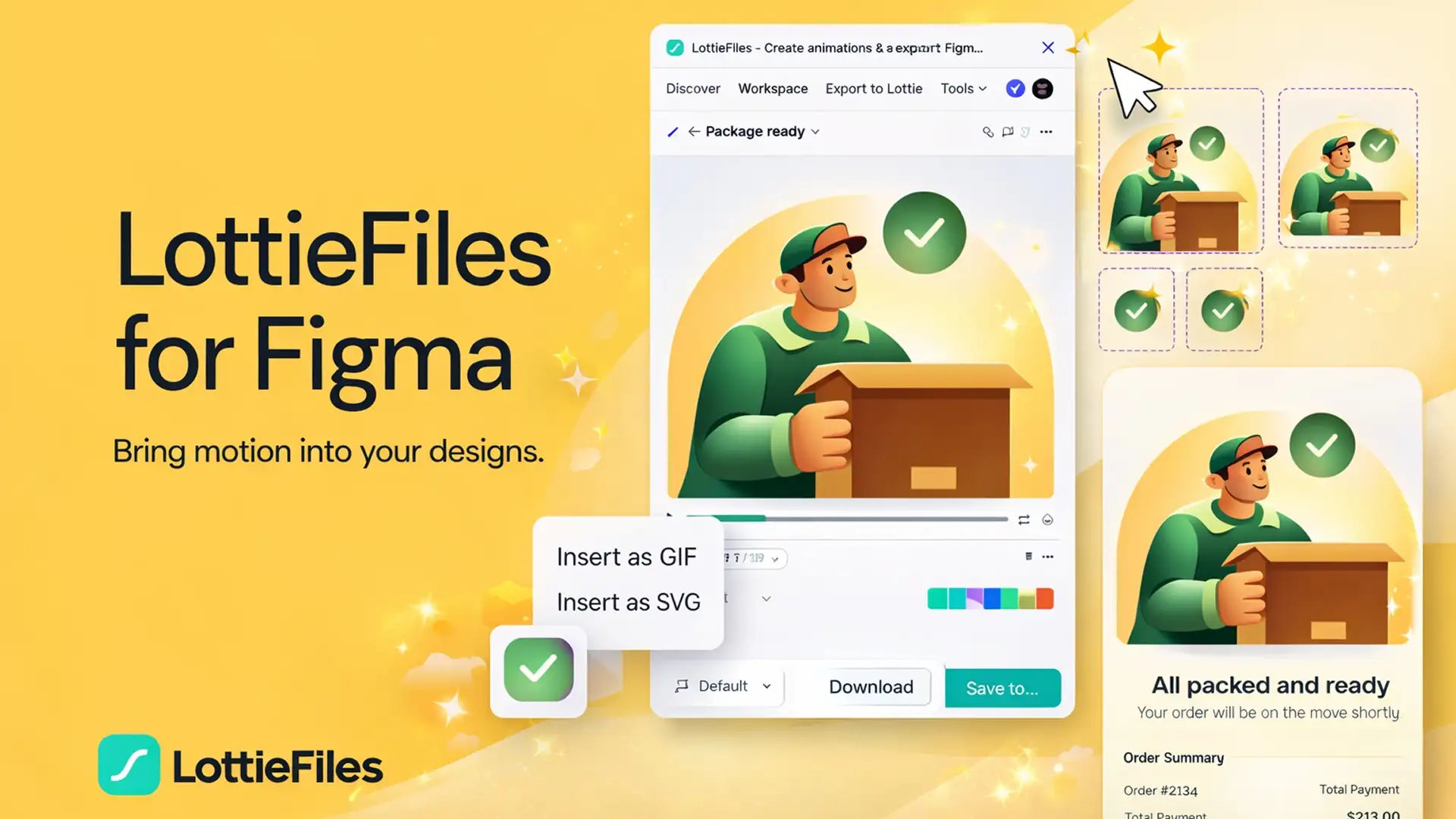
As we discussed in our
Figma to Lottie Guide, this plugin is non-negotiable. It lets you export your "Smart Animate" prototypes directly as code (dotLottie) without touching After Effects. It also lets you access thousands of free animations instantly.
Why you need it:
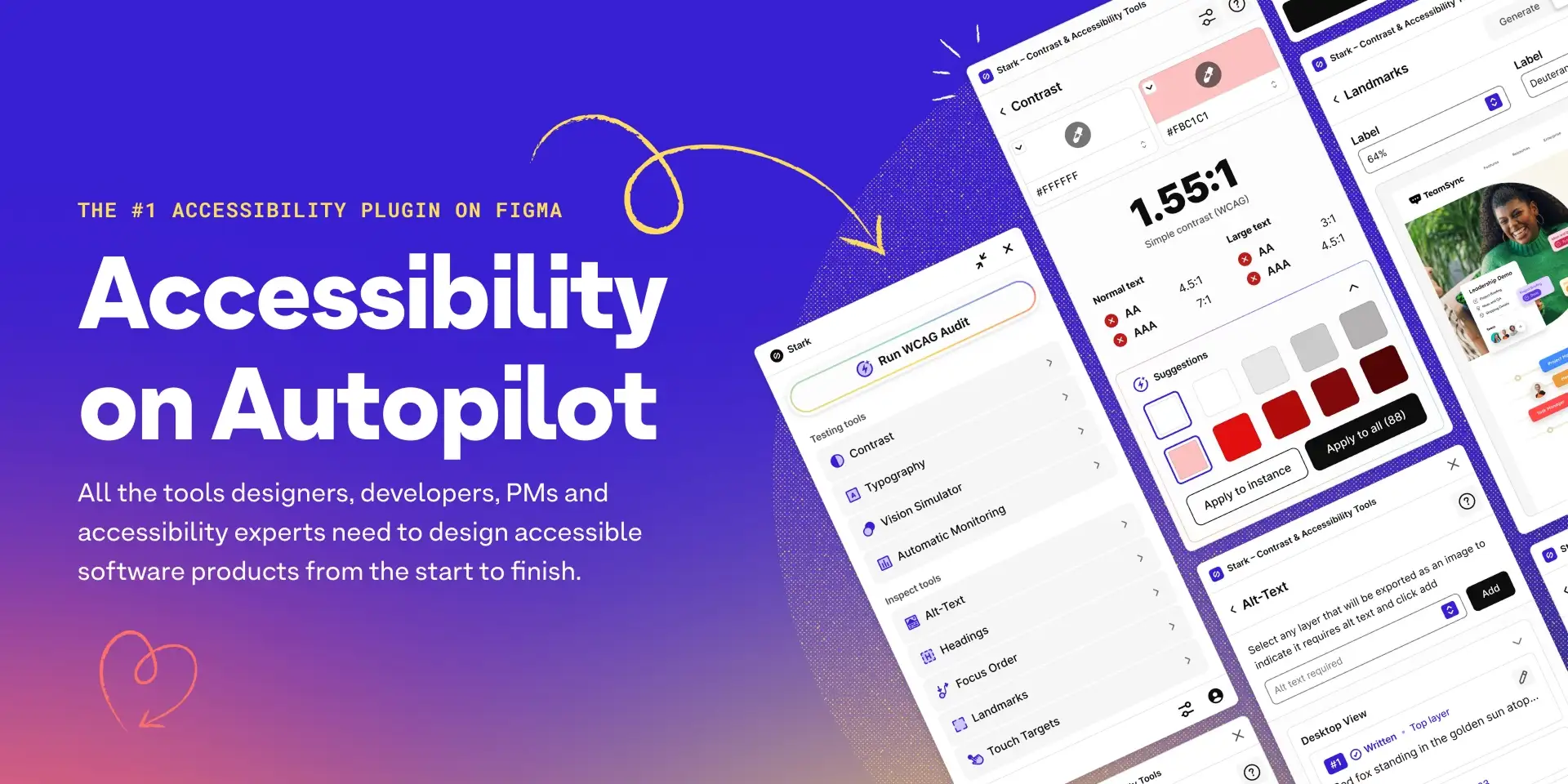
Don't wait until the end to check if your grey text is readable. Stark lives in your sidebar and instantly flags contrast errors, simulates color blindness, and generates ALT text suggestions.
Why you need it:
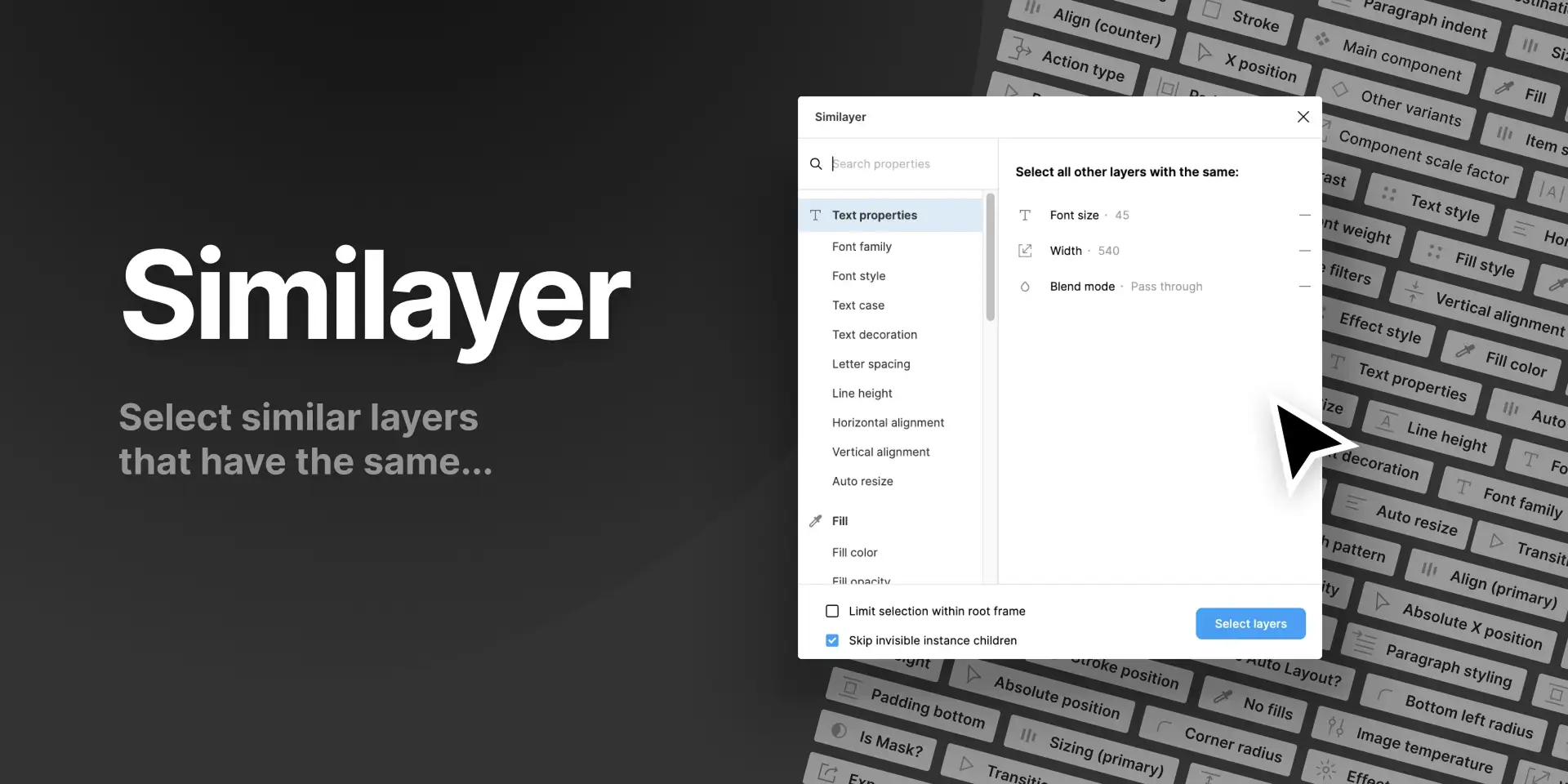
You built a design system, but now you need to select only the 12px text layers that are Red. Similayer lets you select layers based on specific properties (Size, Fill, Stroke, Name). It's a lifesaver for cleaning up messy files.
Why you need it:
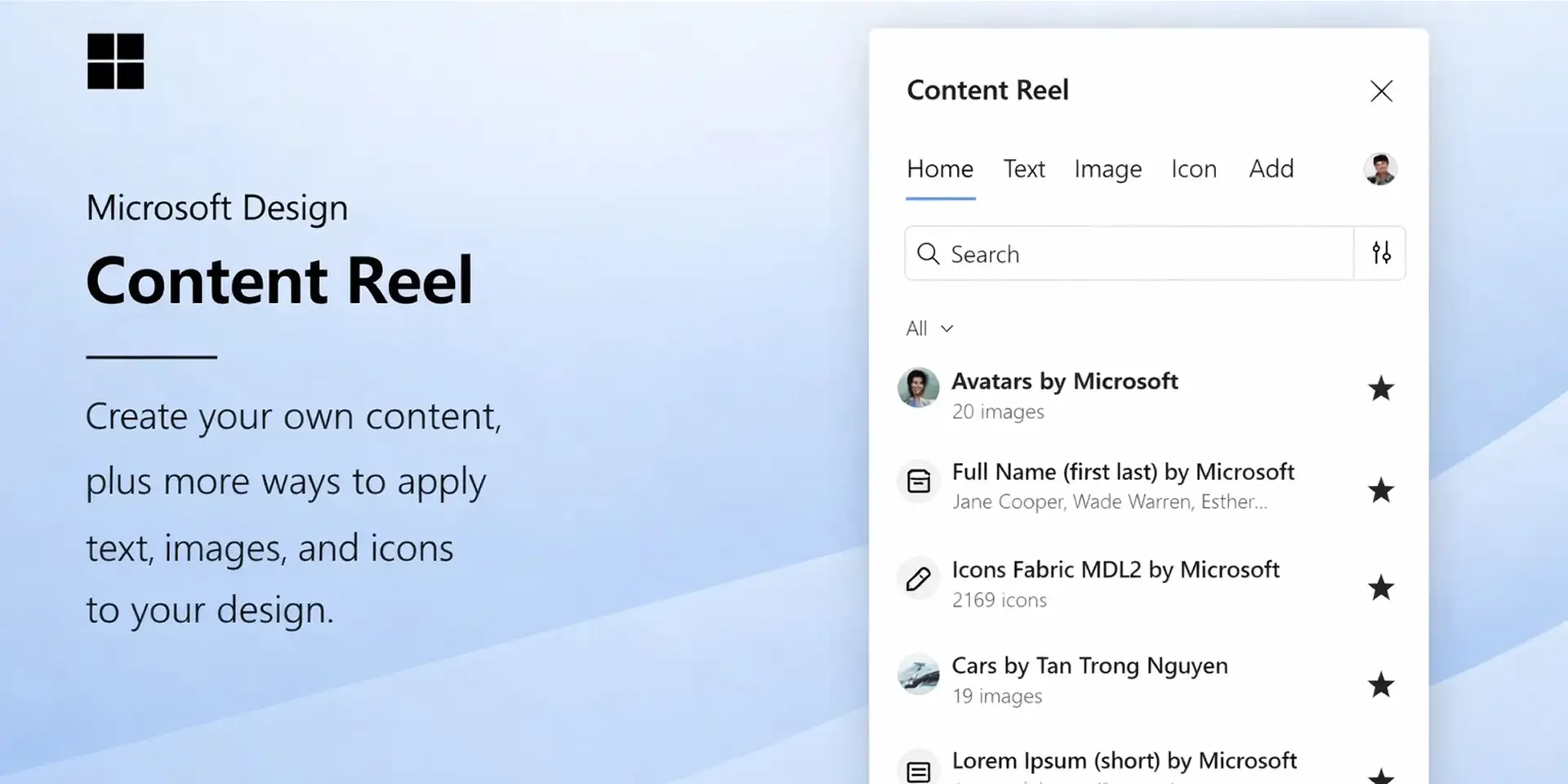
"Lorem Ipsum" is lazy. Content Reel lets you inject real names, addresses, phone numbers, and profile photos into your design with one click. It makes your prototypes look real and helps you spot layout breaks early.
Why you need it:
The granddaddy of icon plugins. It gives you instant access to 100+ icon sets (Material Design, Phosphor, Feather, etc.) as clean SVGs. Stop searching Google Images for icons.
Why you need it:
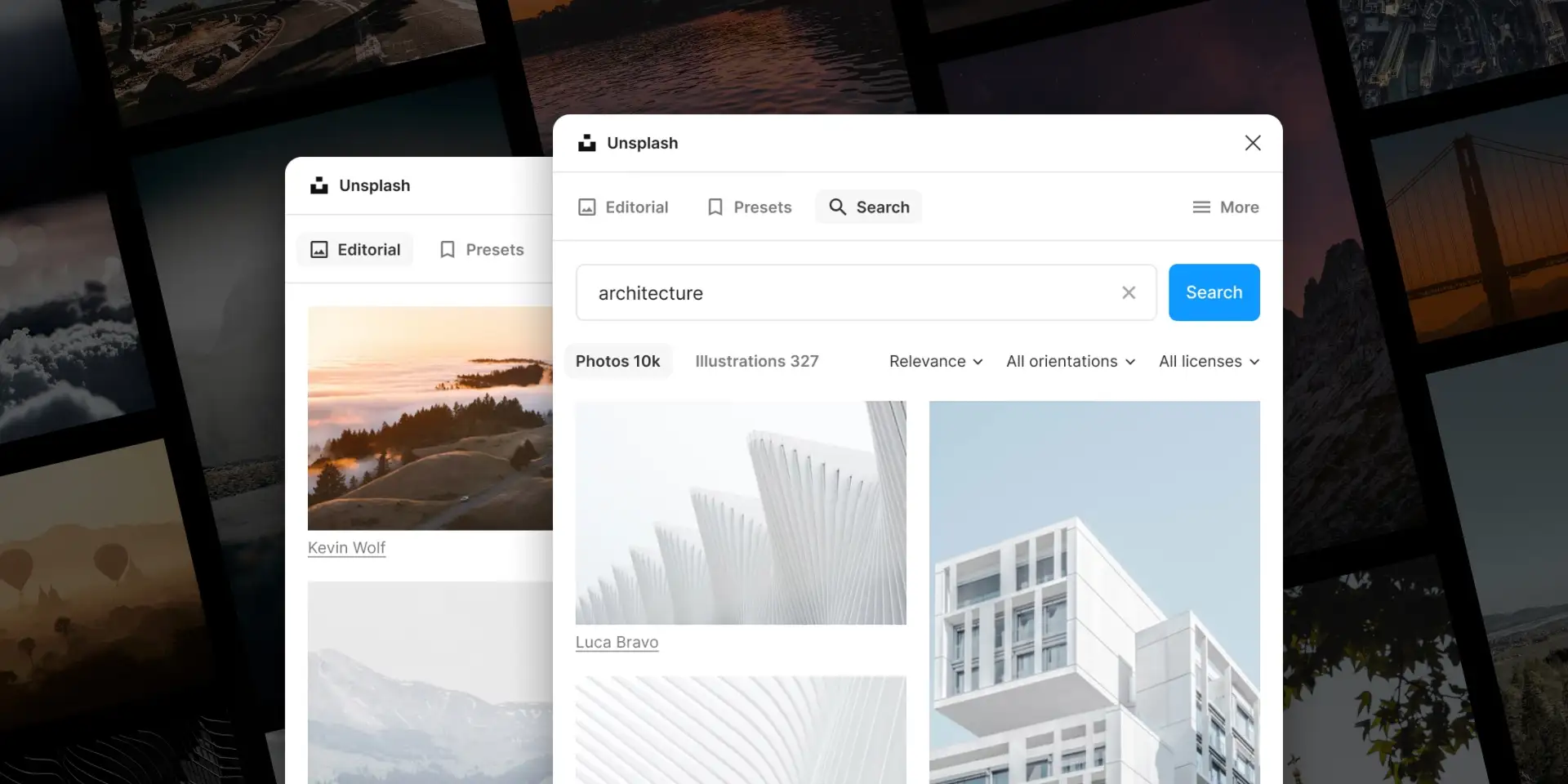
Still essential in 2026. While AI image generators are great, sometimes you just need a high-quality, realistic photo of a "Corporate Office" or "Coffee Shop" instantly.
Why you need it:
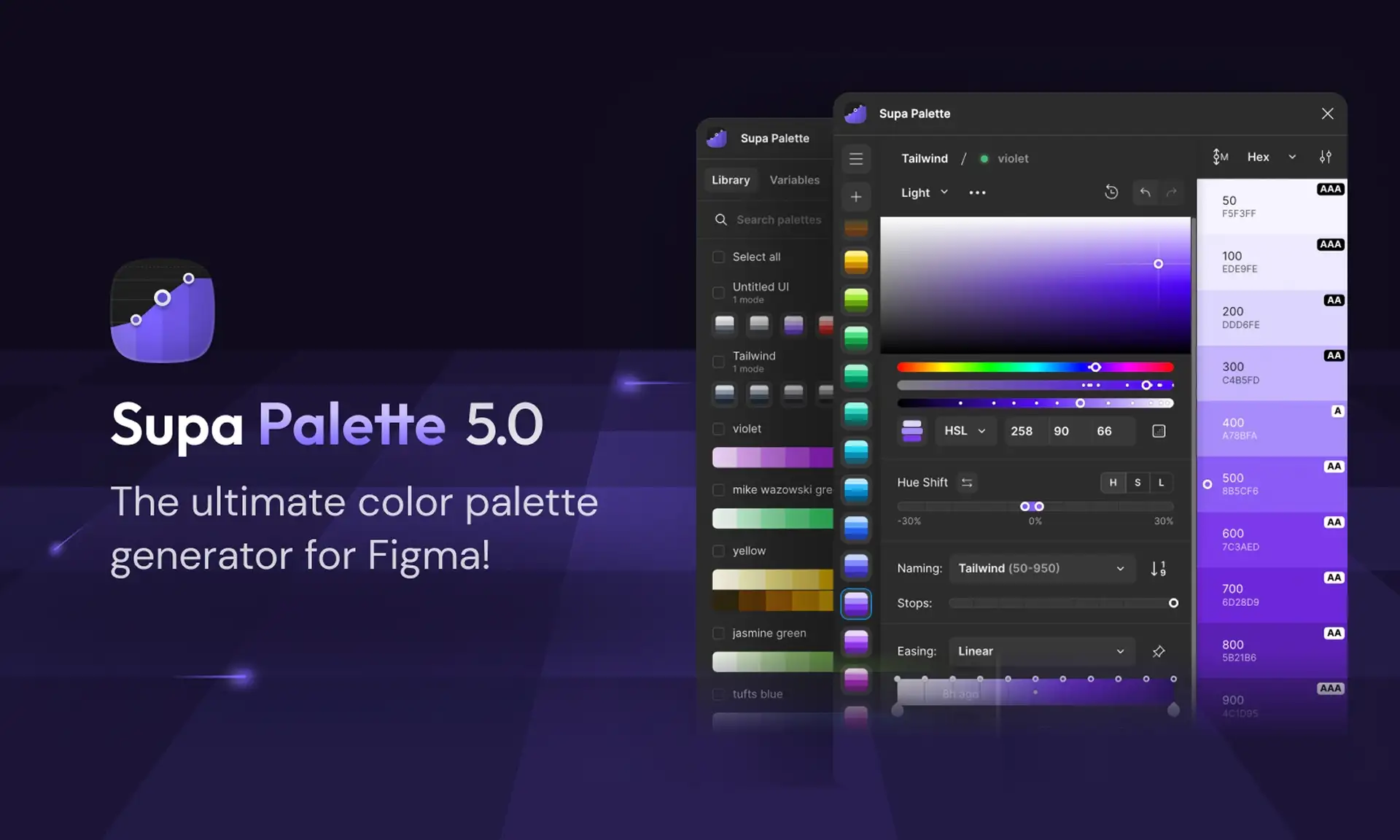
Generating a full color scale (from 50 to 900) is tedious. Supa Palette generates beautiful, accessible color systems in seconds based on a single primary color. Perfect for setting up a new Design System.
Why you need it:
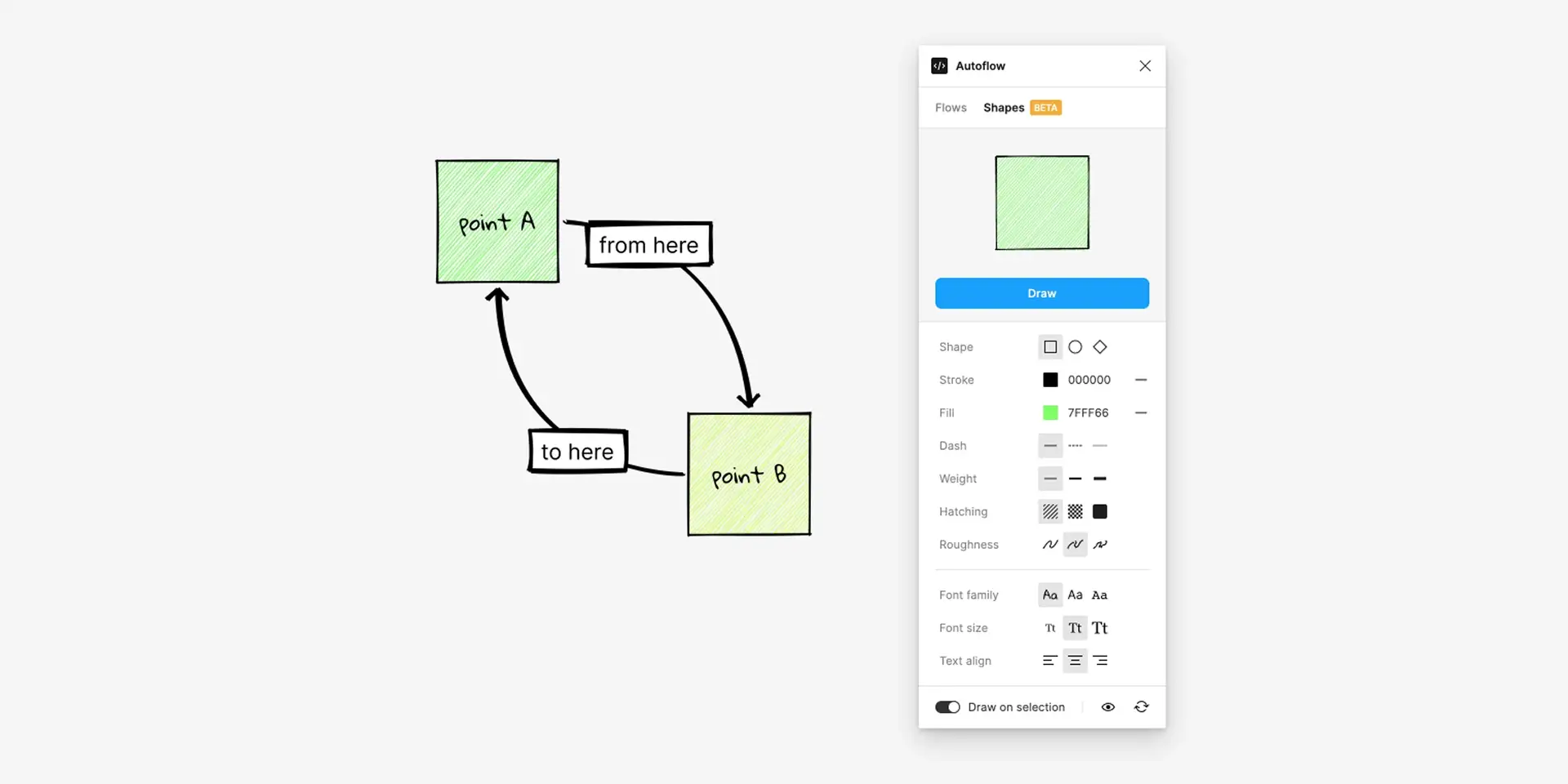
Handing off designs to developers? Autoflow automatically draws connection arrows between your frames. If you move a frame, the arrow redraws itself. It turns static screens into a clear flowchart instantly.
Why you need it:
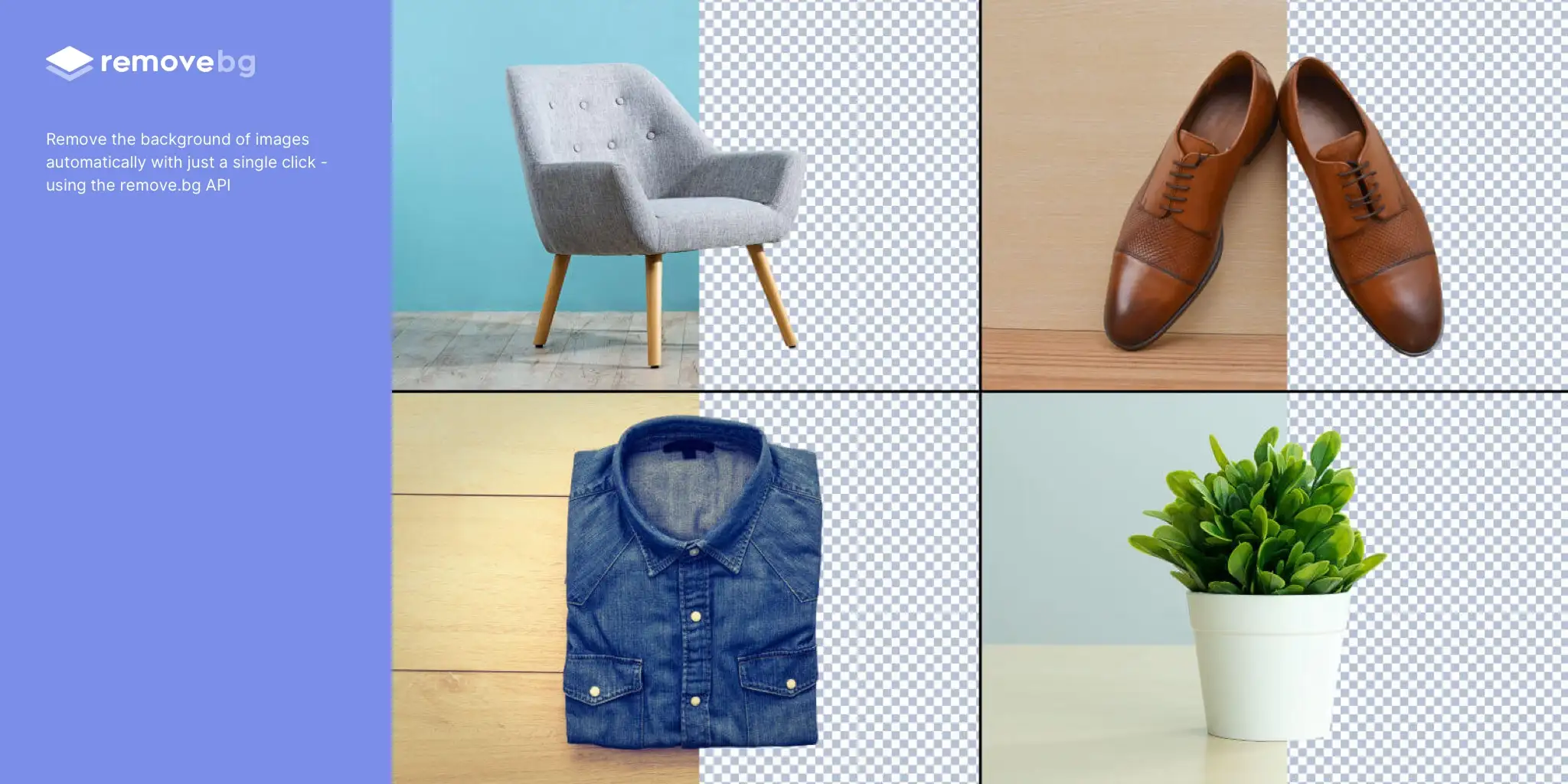
You found the perfect product image, but it has a grey background. One click, and it's a transparent PNG. It saves you a 10-minute trip to Photoshop.

Why you need it:
Staring at a blank canvas? UX Pilot uses AI to generate initial wireframe structures based on your prompt (e.g., "Mobile Login Screen with Social Auth"). It's not perfect, but it breaks "Designer's Block" instantly.
Conclusion
You don't need 50 plugins. You need these 10. Install them, create a "Utility" folder in your Figma sidebar, and watch your daily friction disappear.
Bonus: Our Custom Plugins
We've also built some powerful plugins to simplify your workflow even further. These are completely free and designed to solve real design problems.

Why you need it:
Transform your Figma designs into beautiful, presentation-ready mockups with just one click. No more switching between tools or exporting files — everything happens right inside Figma.

Why you need it:
Find UI inspiration, screens, and components — directly inside Figma. OpenFrames is a community-powered UI library for designers who don't want to start from scratch. Discover login screens, dashboards, mobile layouts, icons, and full UI kits — all ready to import into your Figma file.
Why you need it:
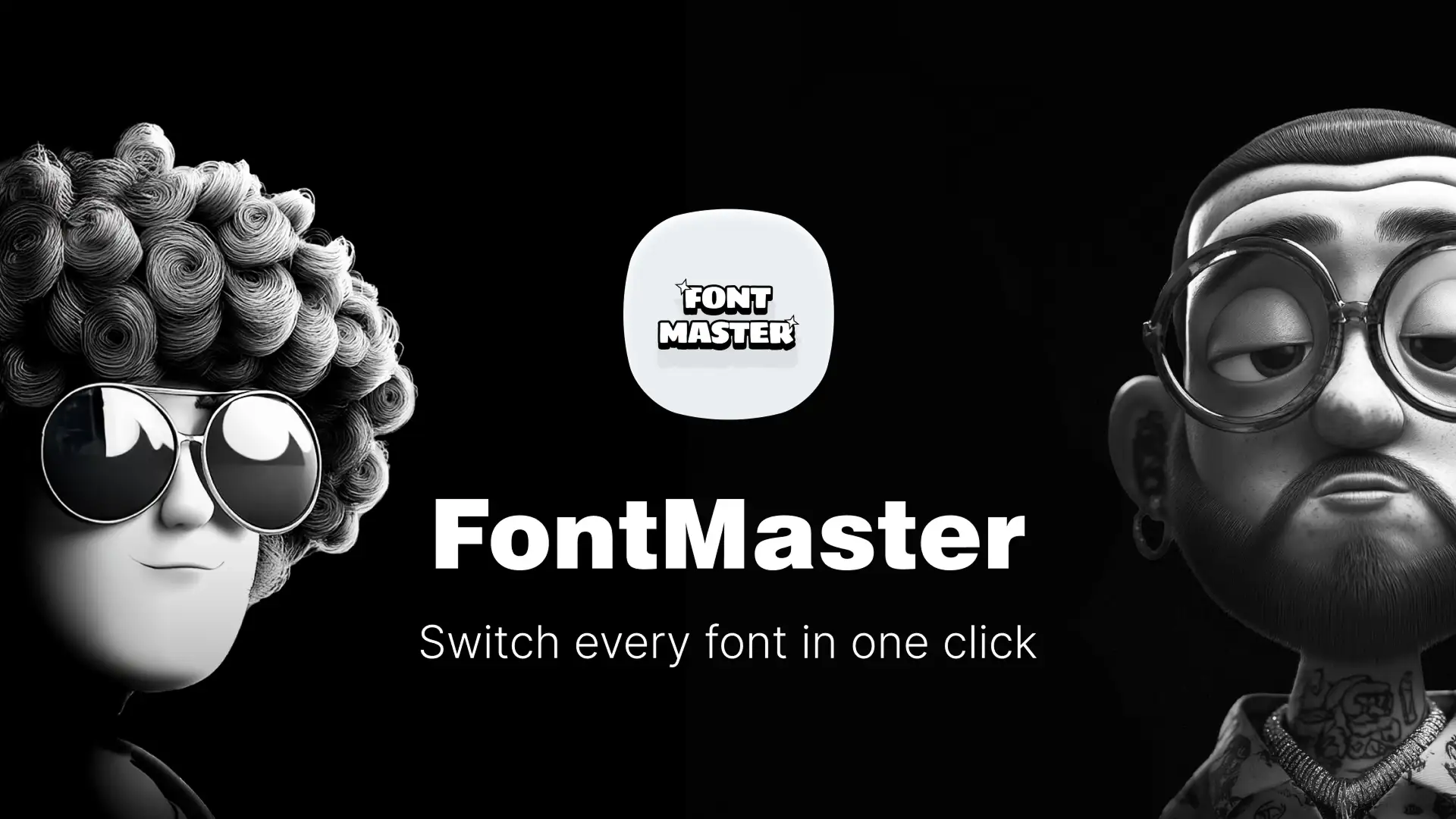
Tired of manually changing fonts across hundreds of text layers? FontMaster lets you replace fonts across your entire Figma file, current page, or selected layers — all in one click.
Why you need it:
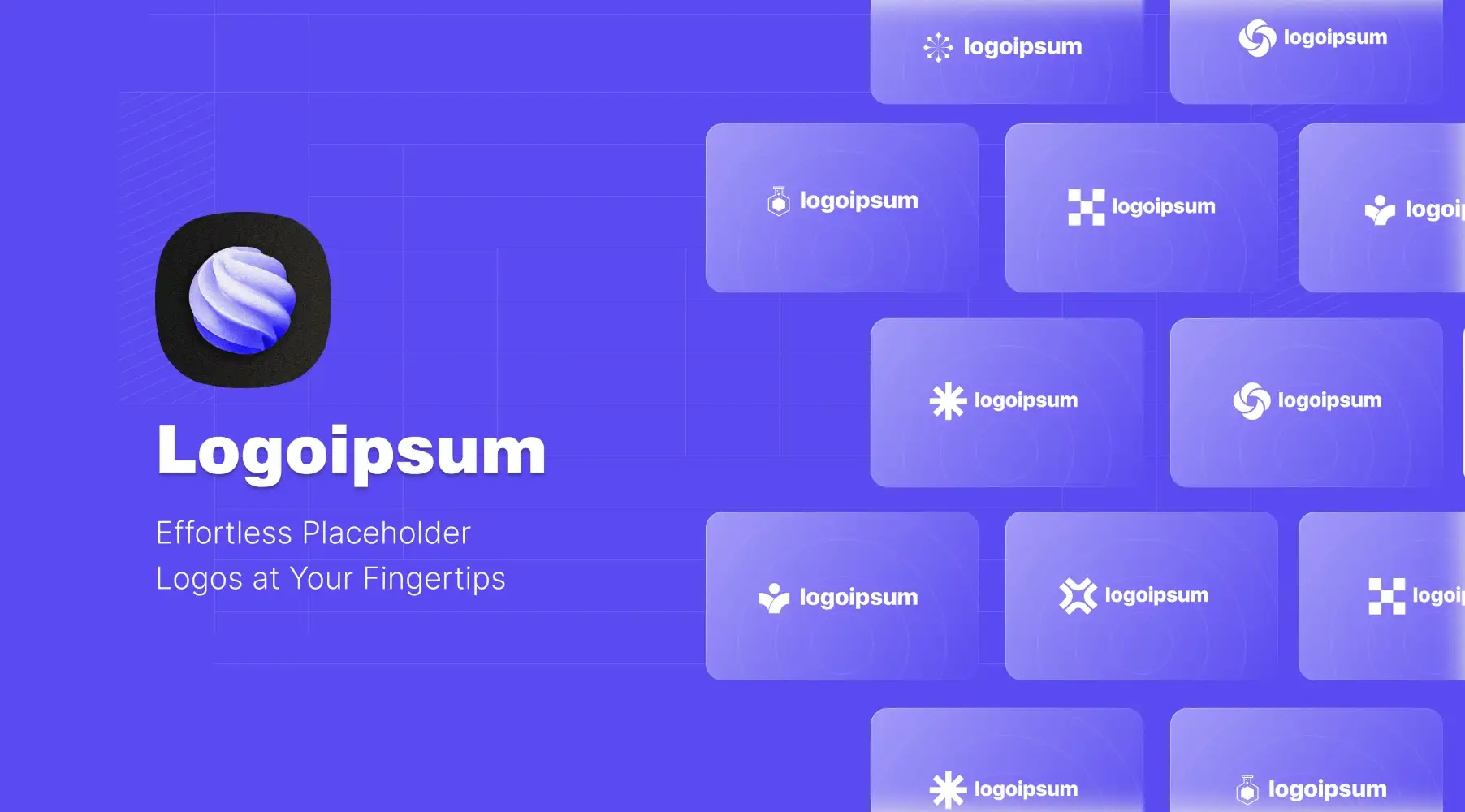
Logoipsum is the ultimate Figma plugin for adding free, high-quality placeholder logos to your designs with just one click. Whether you're crafting wireframes, building prototypes, or showcasing a client presentation, Logoipsum lets you focus on your creative flow by delivering SVG logos instantly.

Why you need it:
FlatFaces is your go-to Figma plugin for creating sleek, professional profile placeholders in just one click. Instantly apply lightweight, plain-background profile images to any shape, ensuring a clean and minimal look for your UI designs. Perfect for designers who value simplicity and efficiency.
FAQ: Figma Plugins
Are Figma plugins safe to use?
Yes, but stick to verified plugins with good reviews. Figma's plugin marketplace reviews each submission, but always check permissions before installing. Avoid plugins that ask for unnecessary access.
Do plugins slow down Figma?
Only if you run multiple heavy plugins simultaneously. Most modern plugins are well-optimized. If Figma feels sluggish, close unused plugins from the Resources panel.
Can I use plugins in the free version of Figma?
Yes! All plugins work in the free version of Figma. Some premium plugins may have paid tiers for advanced features, but the core functionality is usually free.
How do I install Figma plugins?
Go to Resources (Shift + I), click "Plugins," search for the plugin name, and click "Install." Once installed, you can run it from the Resources panel or right-click menu.
What's the difference between plugins and widgets?
Plugins perform one-time actions (like generating icons or checking contrast). Widgets are interactive objects that live in your canvas (like sticky notes or charts) and update in real-time.