The AI Visual Consistency Problem
If you have ever tried using ChatGPT (DALL-E 3) or Midjourney to generate custom icons and illustrations for a UI project, you know the biggest headache: visual inconsistency.
You prompt for a coffee cup, and you get a beautiful 3D clay icon. Then you prompt for an espresso machine, and it gives you a hyper-realistic metallic render. For a professional dashboard, landing page, or mobile app, putting mismatched illustration styles next to each other looks messy and amateur.
The secret to solving this isn't writing a 500-word prompt. It is using Style Referencing. By feeding high-quality benchmark images into ChatGPT's vision model before generating your assets, you can instruct it to lock in the material, shades, textures, and 3D smoothness for an entire design system. Here is the exact 3-step workflow.
Download the Reference Images
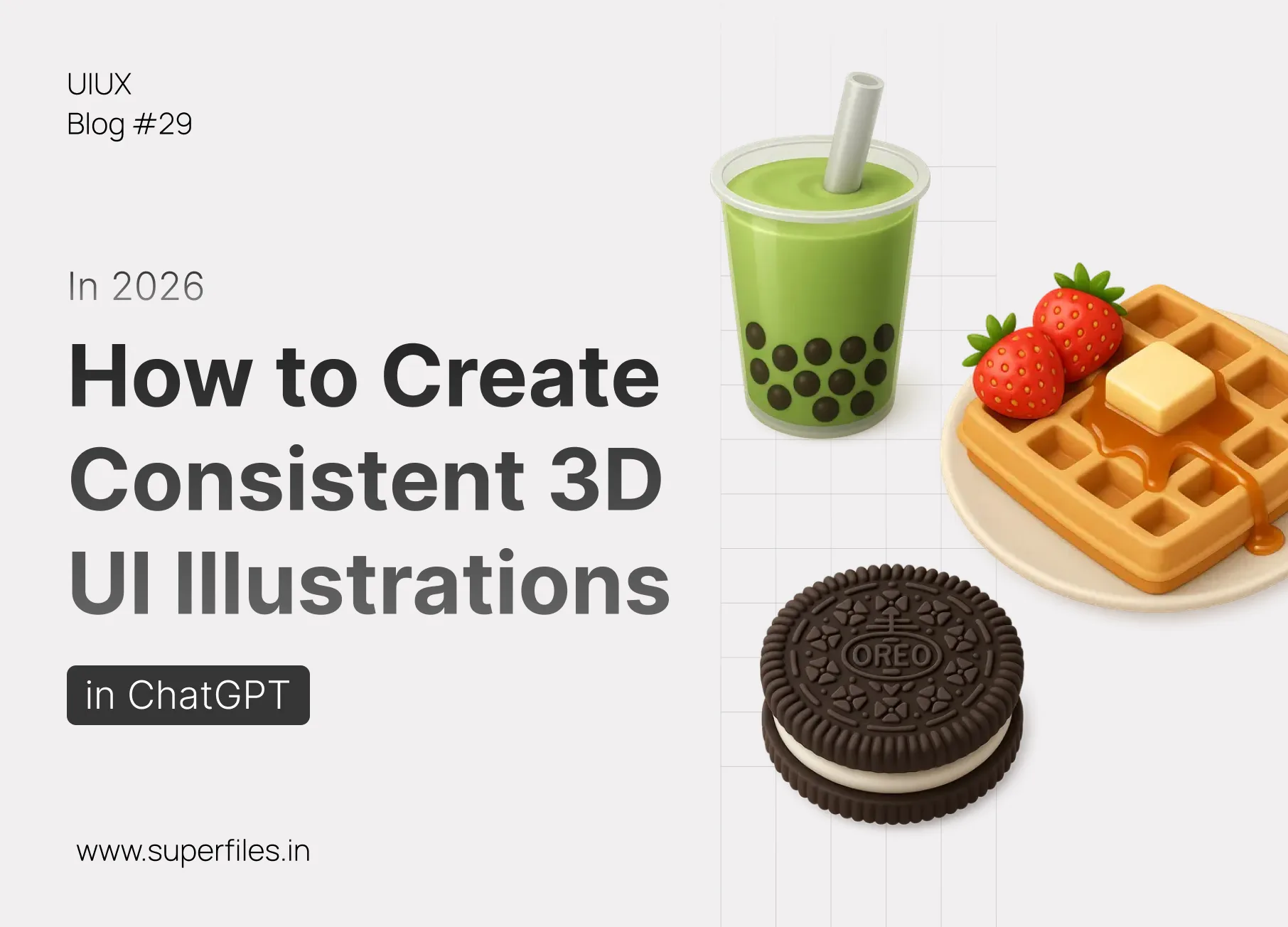
To train ChatGPT on the exact aesthetic we want, we need a flawless benchmark. Below is a curated set of premium 3D UI icons featuring soft studio lighting, smooth matte clay textures, and a harmonious color palette.
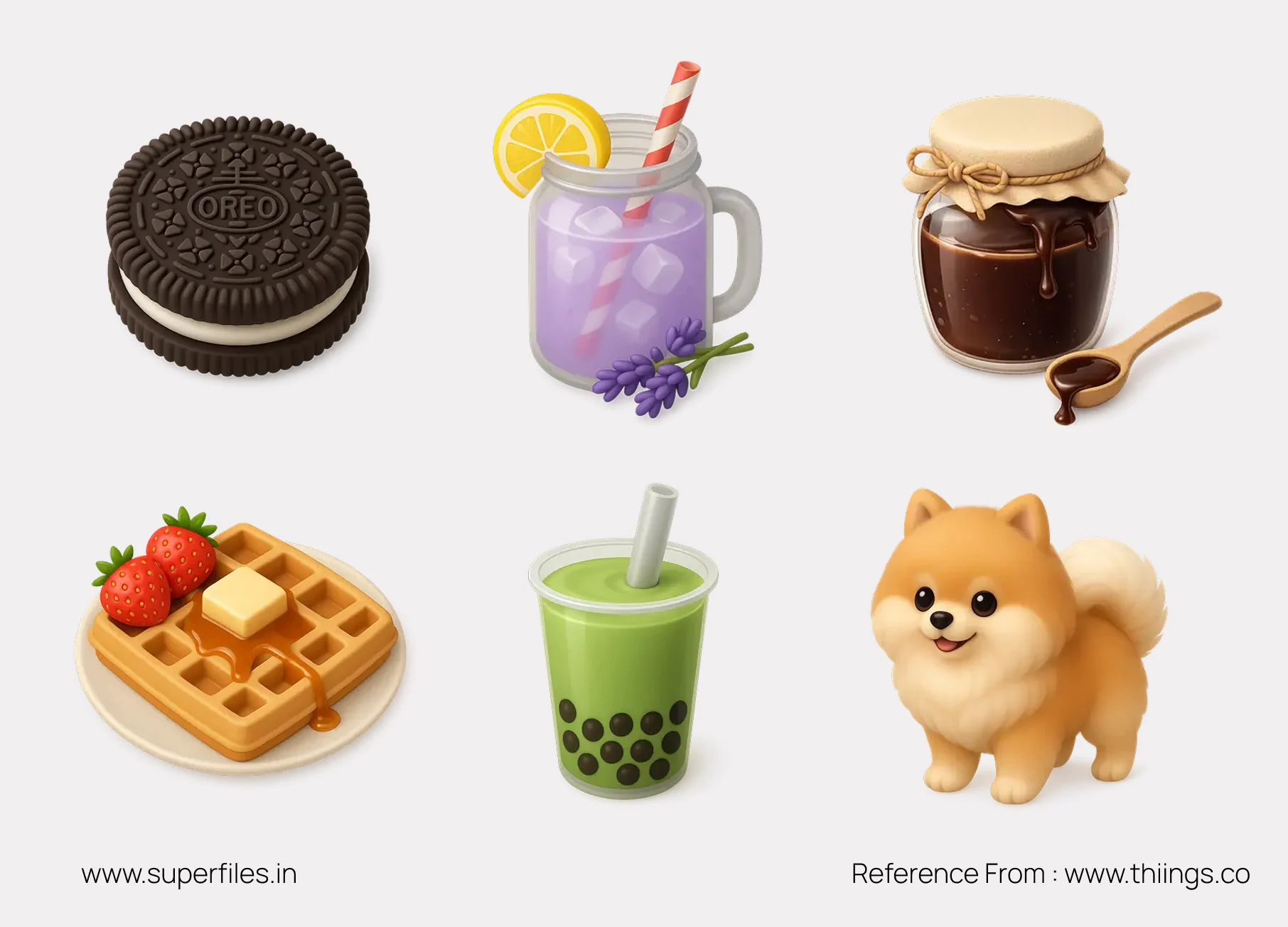
Feed Them into ChatGPT with the Master Prompt
Open ChatGPT (ensure you are using GPT-4o / DALL-E 3). Click the paperclip/attachment icon and upload the reference image you just downloaded. Then, copy and paste this exact master training prompt:
Why this exact phrasing works
By specifically listing "material, shades, colors, texture, and smooth 3d design", you force ChatGPT's vision neural network to parameterize these specific visual attributes into its temporary memory context. It establishes strict guardrails for all subsequent generation requests.
Done! Generate Your Custom Assets
ChatGPT will confirm that it has analyzed the visual style. Now, you can simply type whatever asset or illustration you need for your UI, and it will automatically generate it in that exact flawless 3D style!
Try these follow-up prompts for your UI/UX projects:
Pro Tips for Seamless Figma Handoff
Once you have generated your custom illustration set, follow these senior designer tips to get them ready for production UI layouts:
- Remove Backgrounds Cleanly: Use tools like PhotoRoom, ClipDrop, or the "Icons8 Background Remover" plugin inside Figma to strip away the solid background without losing the beautiful soft edge shadows.
- Standardize Your Grids: Place each isolated 3D asset inside a standard 128x128px or 256x256px Figma frame. Ensure the padding is consistent across all icons so they look perfectly aligned in your cards and bento grids.
- Adjust Brand Colors: If your product uses a specific brand hex code (e.g., #6366F1 Indigo), you can tell ChatGPT: "Keep the exact material and lighting, but replace the orange accents with #6366F1."
Have Fun Creating!
AI is the ultimate assistant when you know how to steer it. By locking in visual consistency upfront, you can build entire custom asset libraries in minutes rather than days. Have fun creating your next stunning UI!

Hiren Patel


Lemonade Wishes